Removing an image background used to require Photoshop skills and hours of careful editing. Today, AI-powered tools can do it in under 3 seconds — completely free. Whether you need a product photo with a transparent background, a profile photo cutout, or a clean PNG for design work, this guide shows you exactly how.
Why Remove an Image Background?
- Create professional product photos for e-commerce stores
- Make passport or ID photos with a solid color background
- Design social media graphics and YouTube thumbnails
- Extract a person or object for use in another design
- Create stickers, logos, and transparent PNG assets
Method 1: Use iPixLab Remove Background (Free, AI-Powered)
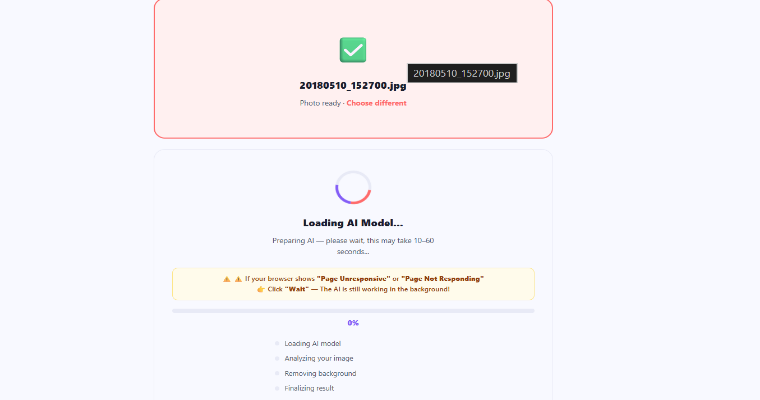
The fastest and easiest method. Our AI detects the subject automatically — no manual selection required.
Step 1: Go to ipixlab.com/remove-bg/ — no signup needed.
Step 2: Upload your photo (JPG, PNG, or WEBP). The AI processes it instantly.
Step 3: Download your transparent PNG — ready to use in any design tool.
What Images Work Best?
| Image Type | Result Quality | Notes |
|---|---|---|
| People / Portraits | Excellent | Hair edges are handled well by AI |
| Product on plain background | Excellent | Best results with light or white background |
| Animals | Very Good | Fur edges may vary slightly |
| Complex cluttered scenes | Good | Manual fine-tuning may help |
| Glass / transparent objects | Limited | Transparency is hard for AI to detect |
Method 2: Photoshop (Advanced)
For precise control, Adobe Photoshop offers the Select Subject and Remove Background buttons in the Properties panel. However, this requires a paid subscription ($20+/month) and takes significantly more time than AI tools.
Photoshop works well for complex images but is overkill for most background removal tasks. Free AI tools like iPixLab give near-identical results in seconds.
Tips for Best Results
- Use photos with good contrast between the subject and background
- Shoot products on a white or plain-colored surface
- Use good lighting to avoid shadows that confuse the AI
- Higher resolution photos produce cleaner edge detection
- After removing the background, use image compression to reduce the PNG file size
What to Do After Background Removal
Once you have your transparent PNG, here are common next steps:
- Add a solid color background — use our Photo Filter tool or paste into Canva
- Create a product listing image — place on white background for Amazon, Shopee, or Tokopedia
- Make a passport photo — use our Passport Photo Maker to add the right background color
- Compress the PNG — transparent PNGs can be large; compress them before uploading
"AI background removal is now so good that professional product photographers use it to save hours of retouching time every day."
Quick Checklist
- ✅ Photo has clear subject with visible contrast
- ✅ Good lighting — avoid heavy shadows
- ✅ Use free AI tool (no Photoshop needed)
- ✅ Download as transparent PNG
- ✅ Compress before uploading to save bandwidth